- netdiag – helps isolate networking and connectivity issues.
- dcdiag – analyzes the state of domain controllers.
- repadmin – assists you in diagnosing replication.
All these tools help diagnose problems as you go.
When you connect to the Internet, Windows sends data to the Windows Update Web site about the way your computer is set up so the service can determine which updates your computer needs. Windows does not use your name, address, e-mail address, or any information that can be used to identify you or contact you. For details, see the Windows Update privacy statement.
It makes no difference whether you use a dial-up or broadband connection; important updates are downloaded behind the scenes and do not interfere with other downloads. If you disconnect from the Internet before updates are fully downloaded, nothing is lost. The download process will continue the next time you connect to the Internet.
You do not have to be connected to the Internet for Windows to install new updates. But updates must be installed, not just downloaded, before they can help protect your computer. If you use the Automatic (recommended) setting, new updates are installed at 3 A.M. However, you can change the time or frequency of scheduled updates to best suit your needs.
If your computer is turned off during a scheduled update, updates are installed the next time you start your computer. You can also choose to have Windows notify you when new updates are available, and then install them yourself.
You might be asked to accept an End User License Agreement (EULA) before certain updates can be installed. Other updates might require you to restart your computer before the installation process can be completed. If you are an administrator for your computer, you can delay the restart. Otherwise, Windows notifies you and then restarts your computer for you so the updates can begin to help protect your computer. It is always a good idea to save your work frequently, and to remind other users of your computer to save their work, especially before scheduled installation times.
Note
When you turn on Automatic Updates, Windows routinely checks the Windows Update Web site for high-priority updates that can help protect your computer from the latest viruses and other security threats.
These updates can include security updates, critical updates, and service packs. Depending on the setting you choose, Windows automatically downloads and installs any high-priority updates that your computer needs, or notifies you as these updates become available.
Explanation: There is a problem with the page you are trying to reach and it cannot be displayed.
Try the following:
Refresh page: Search for the page again by clicking the Refresh button. The timeout may have occurred due to Internet congestion.
Check spelling: Check that you typed the Web page address correctly. The address may have been mistyped.
Access from a link: If there is a link to the page you are looking for, try accessing the page from that link.
If you are still not able to view the requested page, try contacting your administrator or Helpdesk.
Technical Information (for support personnel)
Error Code: 502 Proxy Error. The ISA Server denied the specified Uniform Resource Locator (URL). (12202)
IP Address: x.x.1.1
Date: 2009/06/21 08:15:40 [GMT]
Server: esg-isa-01.magwinya.lan
Source: proxy
The above problem was encountered when web browser clients (FWC) that are located behind Microsoft Internet Security and Acceleration (ISA) Server 2006 try to access internal wordpress web sites on Linux server running Fedora.
Temp Solution:
ISA Server 2006 SE – Click Start – Run – regedit
HKEY_LOCAL_MACHINE\SYSTEM\CurrentControlSet\Services\W3Proxy\Performance\Parameters\
Create the following new entry:Entry name: IgnoreMimeCheckForZeroContentLength
Type: DWORD
Value: 1
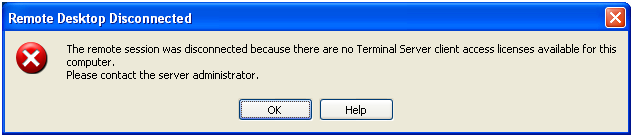
Windows XP users are encountering technical problems when trying to RDP into Terminal Server.
See the snapshot below.

Resolution:
To work around this problem, follow these steps.
Click on start – Run – regedit
Expand HKEY_LOCAL_MACHINE – Software – Microsoft – MSLicensing
Just delete the entire MSLicensing folder. All should work perfect.
BrightStor ARCserve Backup
[05/11/2009-21:06:19 ,0,0,0,0,0,2,0,0,0] AW9621 Failed to back up 1 mailboxes.
Backup Operation Incomplete with the above error massage.
————————————————————
Resolution:
On Active Directory Users and Computers you need to check for failed mailboxes and make sure that they are not disabled/deleted. If they are disabled you need to modify job to exclude those mailboxes from your BrightStor ARCserve Backup job.
Receive ALL your faxes in PRIVACY to your Email, store them electronically.
Save on paper, Save on Toner and Free up your existing fax line.
THIS IS A FREE – NO OBLIGATION OFFER.
Receiving faxes is at NO cost, NO subscription fees, NO fuss.
Receive your faxes anywhere you can access your email.
Sign-up now and receive your own “0866XXXXXX” fax number instantly – ready to receive faxes *.
If you sign up now, you will recieve your FREE fax2email number in less than 2 seconds. Go ahead and sign up today!
NB. You can also make extra money, by becoming a reseller on fax 2 email services.
You will get 10c per minute.
You will recieve your own website and your own control panel free of charge.
You will be able do all the support and issue your clients fax 2 email numbers with ease.
Easy Money Maker:
Lets say you put on 1000 Clients on Fax 2 Email. And they each recieve 1 fax per day for 20 working days.
1000 Clients x 10c x 20 Working Days = R2000 Per Month
So then you will be earning R 2000 p/m and the more clients you put onto the system the more revenue you will make.
If you are interested just fill in the form below, or if you have more questions just email to sales@magwinya.co.za
After you have completed this form, we will create your control panel. And it takes up to 48 Hours to create the control panel.
Firewall client determines how the ISA Server is used for internet access. You have finished deploying FWC 2006 clients on users’ PCs? Interestingly, all your FWC 2006 clients failed to auto detect ISA Server.
Step-by-step resolution:
Click Start, Click ISA Server Management – Expand – Configuration – Networks

On the Auto Discovery tab, select Publish automatic discovery information for this network.
Click on [apply – ok]
Now you need to go and test Firewall client settings. However, when you test FWC – by clicking [detect now] you get the following screenshot:
Now you need to go to your DHCP Server and perform these configs:
Set Predefined Options and Values
Add wpad Option
Configure Options
Scope Options
– enable wpad
Now when you test FWC, you should get positive response
Until next ISA related problem…and please feel free to let us know if this article was really helpful in any way?