Author Archives: Geneva Sibanda

About Geneva Sibanda

I assist companies in the Areas of Network Infrastructure Design and Implementation: (from Windows Active Directory Security, networking, etc.).

How to view and transfer FSMO roles in Windows Server

Transfer the Schema Master Role

Use the Active Directory Schema Master snap-in to transfer the schema master role. Before you can use this snap-in, you must register the Schmmgmt.dll file.

Register Schmmgmt.dll

  1. Click Start, and then click Run.
  2. Type regsvr32 schmmgmt.dll in the Open box, and then click OK.
  3. Click OK when you receive the message that the operation succeeded.

Transfer the Schema Master Role

  1. Click Start, click Run, type mmc in the Open box, and then click OK.
  2. On the File, menu click Add/Remove Snap-in.
  3. Click Add.
  4. Click Active Directory Schema, click Add, click Close, and then click OK.
  5. In the console tree, right-click Active Directory Schema, and then click Change Domain Controller.
  6. Click Specify Name, type the name of the domain controller that will be the new role holder, and then click OK.
  7. In the console tree, right-click Active Directory Schema, and then click Operations Master.
  8. Click Change.
  9. Click OK to confirm that you want to transfer the role, and then click Close.

Transfer the Domain Naming Master Role

  1. Click Start, point to Administrative Tools, and then click Active Directory Domains and Trusts.
  2. Right-click Active Directory Domains and Trusts, and then click Connect to Domain Controller.
    NOTE: You must perform this step if you are not on the domain controller to which you want to transfer the role. You do not have to perform this step if you are already connected to the domain controller whose role you want to transfer.
  3. Do one of the following:
    • In the Enter the name of another domain controller box, type the name of the domain controller that will be the new role holder, and then click OK.
      -or-
    • In the Or, select an available domain controller list, click the domain controller that will be the new role holder, and then click OK.
  4. In the console tree, right-click Active Directory Domains and Trusts, and then click Operations Master.
  5. Click Change.
  6. Click OK to confirm that you want to transfer the role, and then click Close.

Transfer the RID Master, PDC Emulator, and Infrastructure Master Roles

  1. Click Start, point to Administrative Tools, and then click Active Directory Users and Computers.
  2. Right-click Active Directory Users and Computers, and then click Connect to Domain Controller.
    NOTE: You must perform this step if you are not on the domain controller to which you want to transfer the role. You do not have to perform this step if you are already connected to the domain controller whose role you want to transfer.
  3. Do one of the following:
    • In the Enter the name of another domain controller box, type the name of the domain controller that will be the new role holder, and then click OK.
      -or-
    • In the Or, select an available domain controller list, click the domain controller that will be the new role holder, and then click OK.
  4. In the console tree, right-click Active Directory Users and Computers, point to All Tasks, and then click Operations Master.
  5. Click the appropriate tab for the role that you want to transfer (RID, PDC, or Infrastructure), and then click Change.
  6. Click OK to confirm that you want to transfer the role, and then click Close.

Verification of replica failed. The forest functional level is Windows 2000.

Symptom – The client was unable to promote the Windows 2012 server named “pta_t30” as an additional domain controller in their windows 2003 domain t6.local.

Cause – We were getting the error: Verification of replica failed. The forest functional level is Windows 2000. To install a Windows Server 2012 domain or domain controller, the forest functional level must be Windows Server 2003 or higher.

Resolution – We performed the following steps so as to get the issue resolved:

– Ensured that the health of the Domain is good.

– Corrected the Time settings in the registry on secondary domain controller.

– The windows 2012 server named “pta_t30” was getting the IP address from DHCP so we assigned the Static IP address.

– Corrected the NIC binding and the provided order on “pta_t30”.

– Ensured that we are able to ping the domain and DC’s from 2012 server named “pta_t30”

– Raised the forest functional level to Windows 2003 and forced Active Directory replication.

– Ensured that we are able to promote the 2012 server as a Domain controller.

Reference Articles:

• How to Promote Windows Server 2012 as a Domain Controller:http://social.technet.microsoft.com/wiki/contents/articles/14505.how-to-promote-windows-server-2012-as-a-domain-controller.aspx
• Understanding Domain and Forest Functional Levels:http://technet.microsoft.com/en-us/library/cc771294.aspx.

• Understanding Active Directory Domain Services (AD DS) Functional Levels: http://technet.microsoft.com/en-us/library/understanding-active-directory-functional-levels(v=ws.10).aspx

• Configure an authoritative time server: http://support.microsoft.com/kb/816042

If you have any request regarding eSG NETWORKS support, we would be glad to hear from you. If you would feel more comfortable speaking with someone else regarding our service, Themba Twala or Deon van der Walt would be very happy to hear your comments and suggestions.

cannot be loaded because running scripts is disabled on this system.

C:\Users\sibanda\demotedc.ps1 cannot be loaded because running scripts is disabled on this system. For more information, see about_Execution_Policies at http://go.microsoft.com/fwlink/?LinkID=135170. At line:1 char:1 + .\demotedc.ps1 + ~~~~~~~~~~~~~~ + CategoryInfo : SecurityError: (:) [], PSSecurityException + FullyQualifiedErrorId : UnauthorizedAccess

=======================

Solution

=======================

Right click of powersell and Run as Administrator

At command prompt execute the following:

Set-ExecutionPolicy Unrestricted -Force

How to find computer model and serial number

How to find computer model and serial number

Please type the following at command prompt to retrieve the computer model and serial number:

C:\Users\sibanda>wmic csproduct get name && wmic bios get serialnumber

Error 800: Unable to establish connection

When computers both internally and remotely try to VPN into my server that is running Windows Server 2003 R2 Enterprise Edition, they receive VPN Error 800: The remote connection was not made because the attempted VPN tunnels failed.

Your windows Server 2003 R2 use to work 100% without any technical problems, and you have not changed any configuration settings on the server.

Troubleshooting:

We noted that only 3 VPN clients were able to establish the VPN connection, the fourth connection was encountering the VPN Error 800:

Resolution:

We needed to increase the number of available ports for the client remote access / VPN users, by going to open the Routing and Remote Access console. It is under the Administrative Tools menu > Routing and Remote Access, expand the RAS – right click on ports and then select Properties.

Select the WAN Miniport (PPTP) entry and then select the Configure button at the bottom.

You can then change the number of ports to the maximum number of VPN users you will expect. For example in our environment we changed it to 20.

OK, OK again – Restart the Server.

Cannot view a SharePoint Services 3.0 Web site

You receive the following error message when you try to visit a Windows SharePoint Services 3.0 Web site:

Could not load file or assembly ‘Microsoft.Office.DataParts, Version=11.0.0.0, Culture=neutral, PublicKeyToken=71e9bce111e9429c’ or one of its dependencies. The system cannot find the file specified.

Resolution:

You need To restart IIS services.
In IIS Manager, right-click the local computer, point to All Tasks, then click Restart IIS.

How to enable bios virtualization on Dell T110 II Server

How to enable bios virtualization on Dell T110 II Server

At bootup – wait and see F2 to configure settings and press F2 on your keyboard.

Using the down arrow key – go to Processor Settings – press Enter – go to Virtualization Technology – press Space to enable.

Press ESC – ESC – go select Saving changes and exit.

That’s it! Enjoy!

How to Configure DNS Forwarders in Windows Server 2012 R2

How to Configure DNS Forwarders in Windows Server 2012 R2

To configure a DNS server to use forwarders using the Windows Server 2012 R2

1.Open DNS Manager.

2.In the console tree, click the applicable DNS server.

3.On the Action menu, click Properties.

4.On the Forwarders tab, under DNS domain, click a domain name.

5.Under Selected domain’s forwarder IP address list, type the IP address of a forwarder, and then click Add.

6. You can type the IP addresses for your ISP or Google Public Addresses 8.8.8.8 and 8.8.4.4.

That’s it!

Attix5 Backup Health Check

Attix5 is an online disk-to-disk backup solution. Attix5 is one of the most effective backup solution and oldest managed online backup companies, powering SMBs and enterprises.

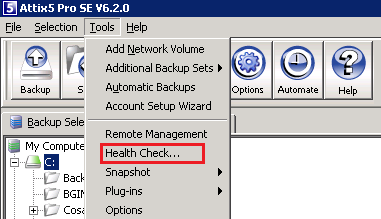
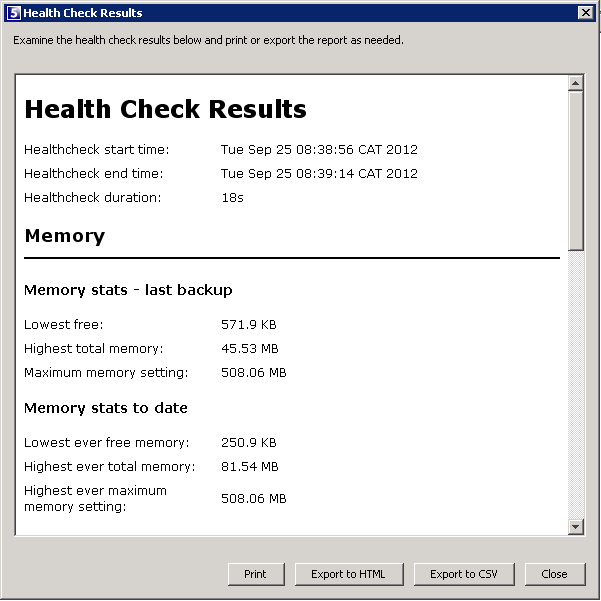
Performing a Health Check enables you to highlight possible issues.

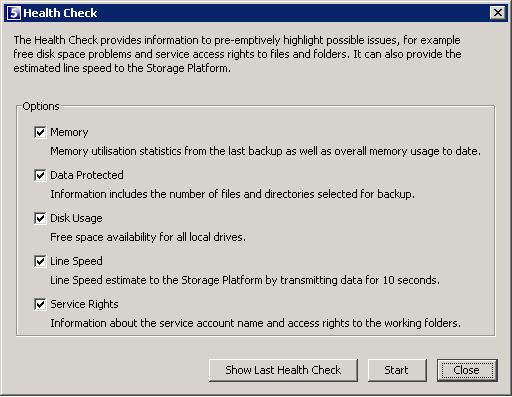
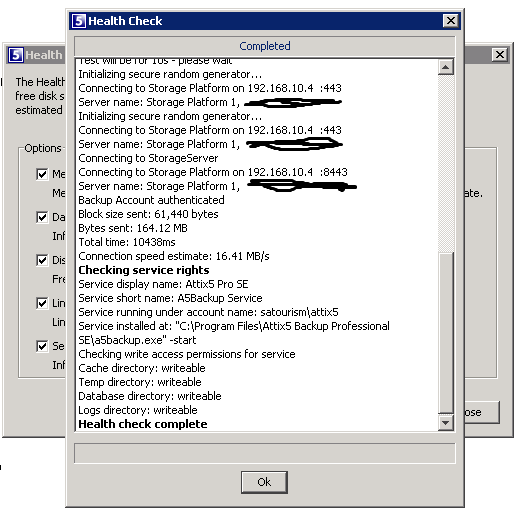
The backup Client Health Check provides information to pre-emptively highlight possible issues (e.g. free disk space or file/folder access problems). It can also provide the estimated line speed to the Storage Platform.

Attix5 Health Check

Attix5 Health Check

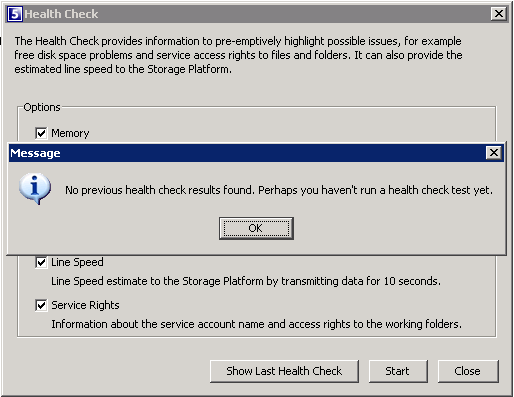
Attix5 Health Check

Attix5 Health Check

Attix5 Health Check
You can Print and/or Export the Health Check reports.
Attix5 Health Check

Attix5 offers a safe and reliable remote back-up and recovery service that protects the critical information generated and stored on school desktops, laptops and servers.

Geneva Sibanda is a Professional Trained Atttix5 Backup Engineer, I have a good mix of Technical Skills, Business Acumen, and a strong desire to see my customers succeed in their business. I’m happy to extend my technical expertise to any company that is serious about their Data Protection.

Buy my Cloud Services VPS 🙂

There you have it! Keep it safe and secure!

Standard Bank Account Statement – Internet Banking Cyber Crime Scams

Protecting your computer against hacking and virus attacks is your responsibility. Don’t be a victim of cyber crime or less you will lose your hard earned money. 

Cyber criminals are really stepping up their game and are using advanced social engineering methods. I’m talking about high-level digital strategies to siphon off your bank account.  With so many people using internet banking, everyone is a target and this is a huge market for criminals.

Yesterday I received an unsolicited email from them (the cyber criminals) and as usual they were offering their e-services by sending my “Standard Bank Account Statement.” Herewith is the screenshot I snipped.

Lazy face

Look, I  highlighted few areas you should be very cautious of:

1. The sender’s email address is definitely not from Standard Bank  Domain.
2. At all cost, don’t open the attachment.

What will happen if you open the attachment?

The sender has included an executable file in the pdf attachment e-mail for you to help ( the cyber criminals) to install malware, which promptly infects your computer and steals your banking information.

NB: The banks must ensure that their clients are kept abreast of online cyber trends.

 If you think you’ve been victimised by this type of cyber crime, contact your bank to report it, and file a complaint with the SAPS.

There you have it! Keep it safe and secure!

Buy my Cloud Services VPS 🙂